If Avast shows “UI failed to load” or says the AV service isn’t responding, the fix is usually one of three things: repair Avast, restart the related Windows service, or reinstall the app cleanly. I’d start with Repair, because it fixes broken files without wiping your settings. If this started right after an Avast update, you’re not imagining it, that’s a common trigger.
One rainy evening, I opened a Windows machine that had been acting weird all day, and Avast just sat there blank, then threw the usual line: “Avast UI failed to load. AV service is not responding.” Very annoying. You click restart, it loops back, and now somehow the antivirus is the thing causing stress.
If that’s where you are, do one thing. Don’t keep clicking Restart inside Avast and hoping for a miracle. Usually this happens because the app files got damaged, a Windows service isn’t starting properly, or a recent update went sideways.
What causes Avast AV to stop responding?
There isn’t one single cause, but these are the usual suspects I’ve seen on Windows systems.
1. Missing or corrupted Avast files
This is the most common one. If part of the Avast install gets corrupted, often after an update or interrupted restart, the interface won’t load properly and the background service may fail too.
2. Conflicts with other security or system tools
Some third-party apps can interfere with Avast, especially other antivirus tools, firewall utilities, or aggressive system optimizers. Two security apps trying to do the same job is a mess waiting to happen.
3. A Windows service not starting correctly
If the required services in Windows are disabled or stuck, Avast may open with errors or fail in the background. On some systems, checking services does help, though honestly I’d still try Repair first.
Let’s fix the Avast UI failed to load error
Before anything else, restart your PC once. Properly. Not sleep mode, not hibernate. A full restart. It sounds basic, but sometimes Avast services get stuck and a clean reboot sorts it out.
If the error comes back, work through the fixes below in order.
1. Set Remote Desktop Services to Automatic
This fix has worked for some users, especially on Windows systems where services were changed manually or by cleanup tools. I wouldn’t call it the first thing to try, but it’s worth checking if Avast keeps failing at launch.
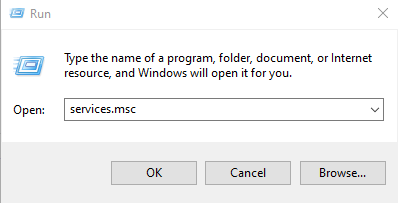
- Press Windows + R.
- Type services.msc and press Enter.
- The Services window will open.
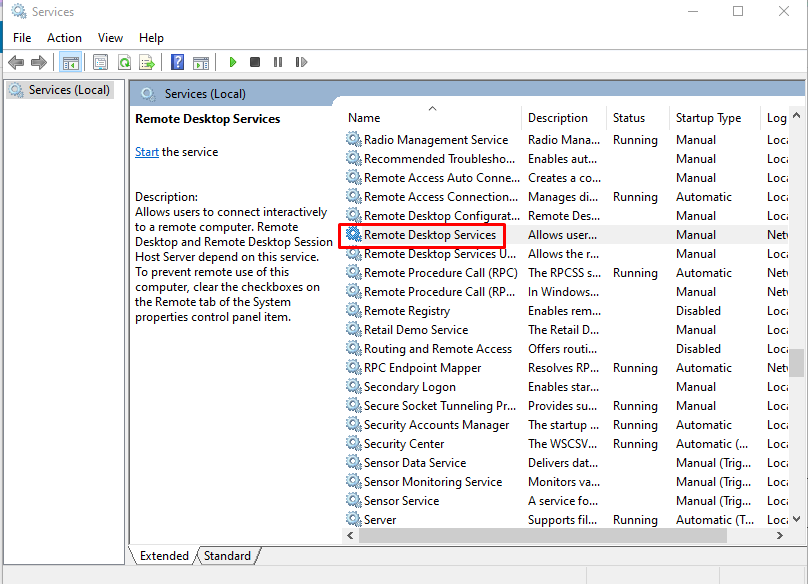
- Find Remote Desktop Services and double-click it.
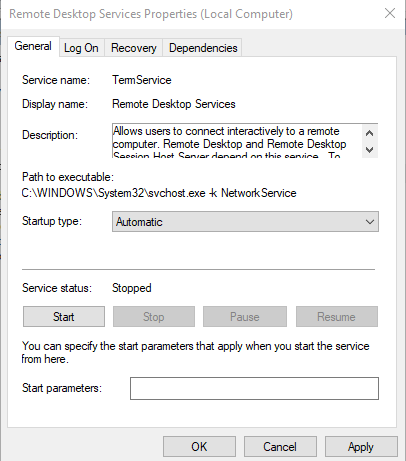
- In the General tab, look for Startup type.
- Change it to Automatic.
- Click Apply, then OK.
- Restart your PC and check whether Avast opens normally.
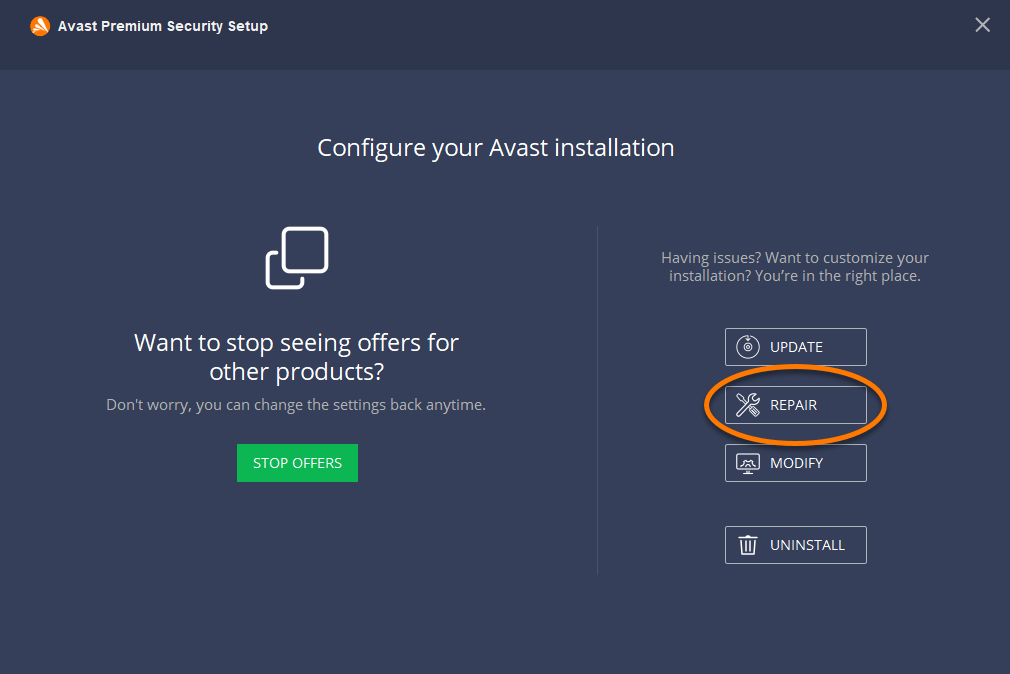
2. Repair the Avast app
This is the fix I’d try first. If Avast broke after an update, Repair usually replaces damaged files without forcing you to set everything up again from scratch.
On current versions of Windows, you can get there through Settings or the classic Control Panel. Either path is fine.
- Open Settings and go to Apps, or open Control Panel > Programs and Features.
- Find Avast in the installed apps list.
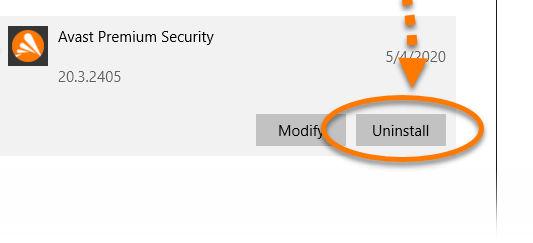
- Click Uninstall/Change.
- Select Repair.
- Let the process finish.
- Restart your computer.
Then open Avast again. If the UI loads, you’re done. Nice and painless.
3. Reinstall Avast cleanly
If Repair didn’t fix it, go for a full reinstall. This takes a bit longer, but it clears out leftover junk that may still be breaking the service.
- Open Settings > Apps, or Control Panel > Programs and Features.
- Select Avast and click Uninstall.
- Follow the on-screen steps to remove it fully.
- Restart your PC.
- Download the latest installer from the official Avast website and install it again.
If you had another antivirus installed before Avast, make sure it’s fully gone too. Leftover drivers from old security software can cause weird conflicts, and those are a pain to trace.
One more thing. If Avast still won’t launch even after a clean reinstall, I’d check Windows itself next. Corrupted system files, broken services, or a half-failed Windows update can also trigger this kind of error.
What I’d actually do
If this were my own PC, I’d do it in this order:
- Restart Windows
- Repair Avast
- Check services if needed
- Reinstall Avast cleanly
Repair is the sweet spot. Fast, low-risk, and often enough. Reinstall is the stronger fix if Avast broke after an update and never recovered.
Conclusion
The Avast UI failed to load error is annoying, but it’s usually fixable without doing anything too dramatic. In most cases, the issue comes down to broken app files or a service problem inside Windows.
If you want the short answer, start with Repair. If that fails, reinstall Avast from scratch. That’s the route I’d take if it was my machine and I just wanted it sorted before calling it a night.