
If Internet Explorer keeps crashing, start with the safe fixes: reset IE, run sfc /scannow, scan for malware, then check Event Viewer if it’s still falling over. This is mostly for old office PCs and legacy websites that still depend on IE. In most cases today, the smarter move is to stop fighting IE itself and switch that site to Microsoft Edge IE mode.
Last week, during a grey Islamabad afternoon with the fan humming and chai going cold beside me, I was helping fix an old office PC that still needed Internet Explorer for one ancient internal portal. IE opened, flashed white for a second, then vanished like it had somewhere better to be. That’s the kind of problem that eats your whole evening for no good reason.
If Internet Explorer is still crashing in 2026, it’s usually one of the same old culprits, broken add-ons, damaged settings, corrupt Windows files, or malware. And since Microsoft has already retired IE for normal use, if you’re dealing with it now, you’re probably stuck with some legacy business app that never got the memo.
Why Internet Explorer still crashes
Internet Explorer was tightly tied into old Windows components, and that made it fragile in weird ways. One bad toolbar, one damaged system file, one sketchy security setting from 2017, and suddenly it starts freezing, closing on launch, or throwing the classic “Internet Explorer has stopped working” message.
If you’re seeing repeated crashes, start with the least destructive fixes first. Don’t go hunting random DLL files from old forum posts. That’s how a browser problem turns into a Windows problem.
Method I: Reset Internet Explorer
This is still the first thing I’d do. A reset disables problem add-ons, restores default settings, and clears a lot of nonsense without you having to guess what broke.
- Launch Internet Explorer from the desktop icon or the Start menu.
- Click the Tools icon in the top-right corner, then click Internet Options.
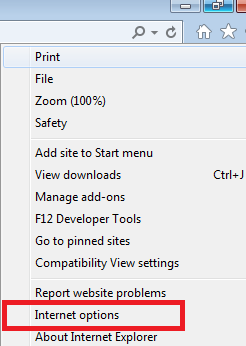
Open Internet Options first, this is where the full IE reset starts.
- In the new window, click the Advanced tab.
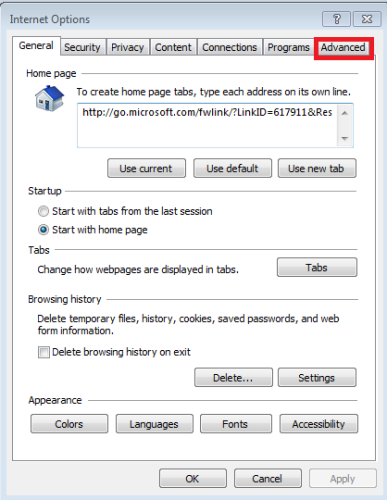
The reset controls sit under the Advanced tab.
- Click Reset.
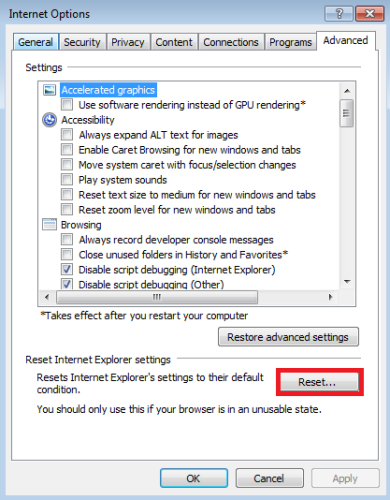
This button restores Internet Explorer back to default behavior.
- When the confirmation window appears, click Reset again.
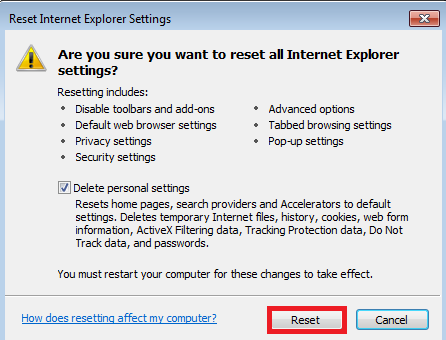
Confirm the reset, then let IE rebuild its default settings.
After that, restart the browser and test again. If the crashes stop, one of your old settings or add-ons was probably the issue.
Method II: Check Event Viewer Instead of Manually Deleting .dll Files
I need to say this plainly, because old troubleshooting guides still push bad advice here. Do not randomly delete .dll files. If Event Viewer points to a DLL, that is a clue, not permission to start deleting stuff from System32 like a maniac.
Use Event Viewer to see what actually crashed IE. Then fix the app, add-on, or Windows file causing it.
- Right-click This PC or My Computer, then select Manage. If Windows asks for permission, click Yes or enter the administrator password.
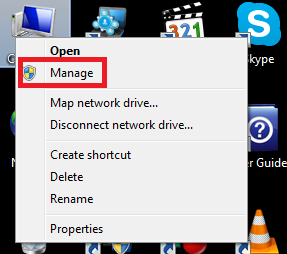
Open Computer Management so you can get to the Windows crash logs.
- In the left pane, open Event Viewer, then expand Windows Logs.
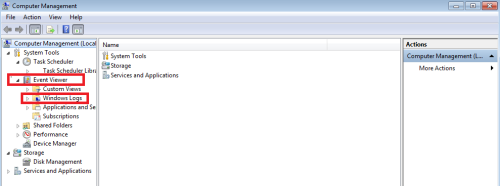
Most IE crash details show up under Windows Logs.
- Click Application.
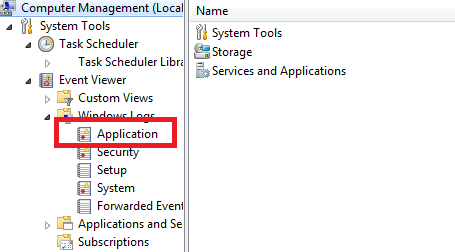
The Application log is where app crashes and faulting modules usually appear.
- Look for recent Error entries around the same time Internet Explorer crashed.

Match the error time with the exact moment IE crashed.
- Open each matching error and note the faulting module or file name.
- If the file belongs to a browser add-on, old toolbar, antivirus plugin, or third-party app, disable or uninstall that software first.
- If it looks like a Windows system file, jump to the repair steps in Method IV.
This is slower than guessing, sure. But it gives you a real lead. And honestly, half the time the crashing module turns out to be some old junk add-on nobody remembered installing.
Method III: Reset Security Zones
Sometimes IE isn’t crashing because the browser is broken, it’s crashing because the security settings are a mess. Old enterprise tools, group policy changes, and years of random tweaks can leave those zones in a bad state.
- Open the Control Panel and click Internet Options.
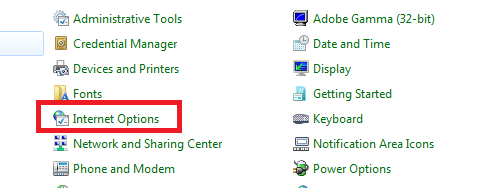
You can open the same Internet settings from Control Panel too.
- Click the Security tab, then select Reset all zones to default level.
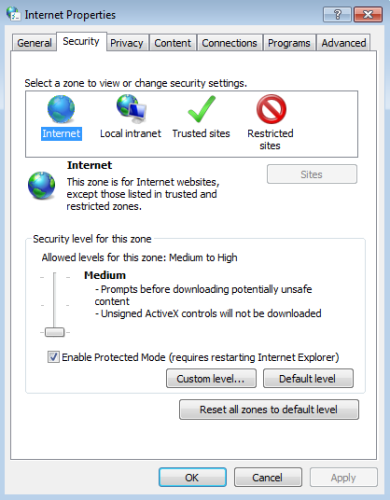
Resetting the zones can fix odd permissions and site-loading crashes.
If Internet Explorer only crashes on certain websites or internal dashboards, this one is worth trying early.
Method IV: Run System File Checker (SFC)
This is the proper Windows-side repair. I still use it on older machines because it catches more than people expect, especially if IE started crashing after a bad update, abrupt shutdown, or disk issue.
- Type cmd in the Windows search bar.
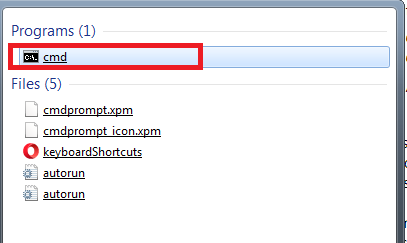
Search for Command Prompt from the Start menu.
- Right-click Command Prompt and choose Run as administrator.
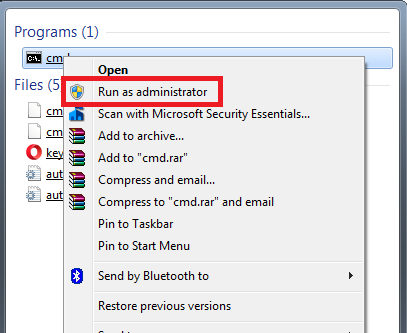
Run it as admin or the repair scan may fail.
- Click Yes if Windows asks for permission.
- In the Command Prompt window, type sfc /scannow and press Enter.
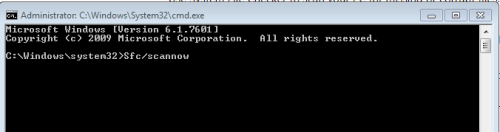
System File Checker scans protected Windows files and repairs what it can.
Let it finish. Fully. Then restart the PC and test IE again.
If SFC says it found corruption but couldn’t fix everything, do one thing. Run these commands in an elevated Command Prompt, one at a time:
- DISM /Online /Cleanup-Image /RestoreHealth
- sfc /scannow
That DISM step is mainly useful on Windows 8, Windows 10, and Windows 11. On very old systems, results can vary. If you’re on Windows 7, SFC is still the more common first repair tool.
Method V: Scan Your PC with Microsoft Security Tools
Malware and old browser hijackers loved Internet Explorer. They still do on unmanaged legacy machines. If IE crashes along with pop-ups, homepage changes, redirect junk, or weird search pages, scan the whole system properly.
The old advice here needs a cleanup. Microsoft Security Essentials is obsolete for most people now. On Windows 10 and Windows 11, use Microsoft Defender Antivirus, which is built in. On older systems like Windows 7, you’ll need to verify what protection is actually installed and still functioning.
- Open Microsoft Defender or your installed antivirus software.
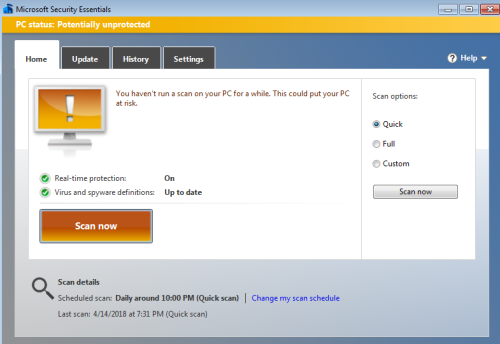
Run a full scan if IE crashing comes with other suspicious behavior.
- Choose a Full Scan and start it.
- When the scan finishes, remove or quarantine any threats it finds.
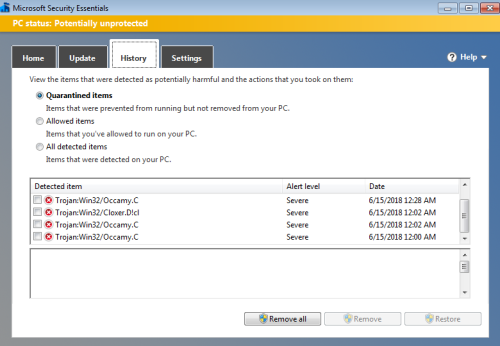
Remove anything flagged, restart the PC, then test Internet Explorer again.
If the machine feels especially cursed, I’d run a second-opinion scan with Malwarebytes too. Adware loves hiding in old browser setups, and one scan sometimes misses it.
Quick comparison of the fixes
| Fix | Best for | Risk level | Time |
|---|---|---|---|
| Reset Internet Explorer | Crashes on launch, weird behavior, broken add-ons | Low | 5 minutes |
| Check Event Viewer | Repeated crashes with no obvious reason | Low | 10 to 20 minutes |
| Reset Security Zones | Crashes on specific websites or internal tools | Low | 2 minutes |
| Run SFC and DISM | Corrupt Windows files or update-related issues | Low to medium | 15 to 40 minutes |
| Malware scan | Pop-ups, redirects, homepage hijacks, suspicious slowdowns | Low | 20 to 60 minutes |
What I’d actually do, in order
If this was my own machine, or some relative’s office PC running one cursed payroll portal from another century, I’d do it like this:
- Reset Internet Explorer
- Disable or remove suspicious add-ons
- Reset security zones
- Run sfc /scannow
- Run a full malware scan
- Check Event Viewer if it still crashes
Common mistake: people see one DLL name in a crash log and immediately start deleting files from random Windows folders. Don’t. Diagnose first, repair second, delete almost never.
A reality check for 2026
Here’s the honest part. Internet Explorer is retired, unsupported for normal use, and not worth babysitting any more than necessary. If your real goal is access to one old website, you probably don’t need Internet Explorer itself. You need a way to open that site without the browser exploding.
That usually means Microsoft Edge with IE mode. It’s cleaner, safer, and far less annoying. I used to recommend squeezing a bit more life out of IE itself. I don’t anymore. Too many strange failures, too little payoff.
If your office app still hard-depends on the old standalone IE executable, that’s a bigger legacy software problem. And to be fair, no browser reset can fully solve bad enterprise software choices from 12 years ago.
Final recommendation
If Internet Explorer keeps stopping, start with a reset and an SFC scan. Those two fix a surprising number of cases. If it still crashes, check Event Viewer and scan for malware before touching anything deeper.
If it was my money, my time, and my evening, I’d stop trying to make Internet Explorer behave like a modern browser and move that workflow to Microsoft Edge IE mode as soon as possible. That’s the practical fix now. Less drama. Better security. Save your chai and your patience, yaar.