How to Make Google Chrome Fast Again
If Chrome feels slow, bloated, or randomly janky, this is for you. I cut the dead old advice, kept the fixes that still work now, and put them in the order I’d actually try on my own laptop.
- Start with extensions, they still cause more Chrome slowdowns than anything else.
- Use Chrome Task Manager to find the tab or add-on chewing through RAM and CPU.
- Clear cached files if websites load badly, but don’t wipe passwords unless you mean it.
- Update Chrome and relaunch it, old sessions get weird fast.
- Ignore outdated tips about plugins, Chrome apps, and old cleanup tools, those belong to another era.
- If Chrome still feels cursed, reset settings and run a malware scan.
Last week, late at night, I had Chrome open with Docs, Gmail, WhatsApp Web, two dashboards, and one YouTube tab I was pretending was “background noise.” Then the whole thing started dragging. Scrolling felt sticky. Typing lagged. My laptop fan kicked up like it wanted to file a complaint. Annoying, but familiar.
People love saying Chrome is just a RAM monster and that’s the end of the story. Sometimes, fair enough. But most of the time, the real problem is simpler. Too many extensions. One broken tab. Old cached junk. A setting that doesn’t play nicely with your machine.
This guide keeps the original idea, ten ways to speed up Chrome, but updates it for how Chrome actually works now. The old version was built around Chrome 47 and Windows 7. That stuff is ancient now. Chrome Apps are basically gone for normal users, the old plugins page is gone, and Google retired the Chrome Cleanup Tool years ago. So I replaced the stale bits with fixes that still matter today.
- Tip #01 – Erase cache, history, and other browsing data
- Tip #02 – Enable page preloading
- Tip #03 – Remove old site shortcuts and unused installed experiences
- Tip #04 – Skip obsolete plugin tweaks, use site permissions instead
- Tip #05 – Deactivate or remove unnecessary extensions
- Tip #06 – Disable hardware acceleration if Chrome feels glitchy
- Tip #07 – Use Chrome Task Manager to find resource hogs
- Tip #08 – Be careful with Chrome flags
- Tip #09 – Keep Chrome up to date
- Tip #10 – Reset Chrome settings and run a malware check
Tip #01, Erase Cache, History, and Other Browsing Data
If Chrome has been acting strange for a while, this is one of the first things I try. Not because it’s magic. It isn’t. But broken cached files, stale cookies, and old site data can make pages load badly, log you out, or keep serving weird behavior long after the original issue should’ve died.
Clear cached images and files first. That’s the low-risk move. Don’t nuke everything unless you’re fine losing site sessions and starting fresh.
Here’s how I do it:
- Open Chrome.
- Click the three-dot menu in the top-right corner.
- Open Delete browsing data.
- Or use Ctrl + Shift + Delete on Windows, Command + Shift + Delete on Mac.
- Choose a time range. I usually start with Last 7 days.
- Tick Cached images and files.
- Only tick Cookies and other site data if a website is clearly misbehaving.
- Click Delete data.
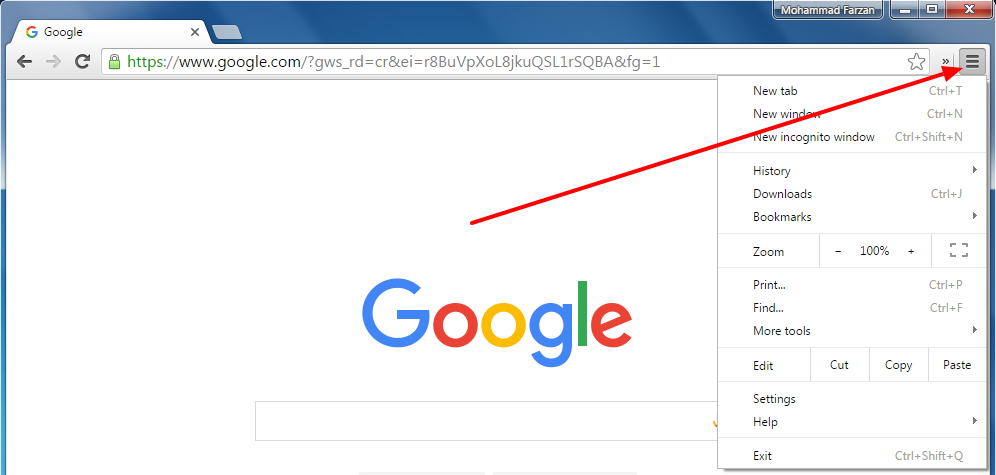
Most Chrome cleanup still starts from this menu, even if Google keeps renaming things.
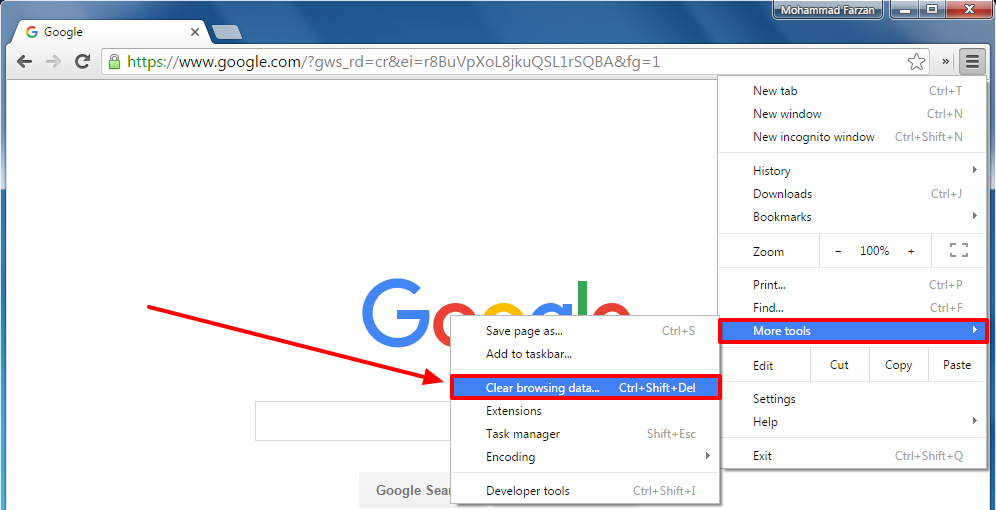
You can dig through the menu, but the keyboard shortcut is much faster.
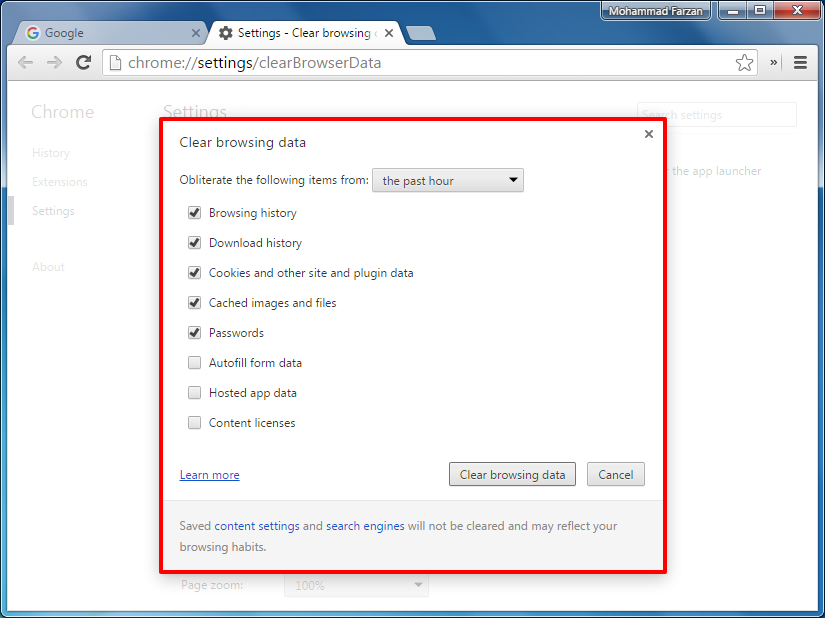
The screen looks a bit different now, but the main choice is the same: remove cache first, don’t delete useful stuff by accident.
What helps performance: cached files, broken cookies, and bad site data.
What usually doesn’t: deleting passwords, autofill entries, or download history.
I’ve seen people wipe saved passwords hoping Chrome will become fast again. It won’t. It’ll just make your next 45 minutes miserable.
Tip #02, Enable Page Preloading
This setting still exists in modern Chrome, though Google has moved it around and changed the wording over time. The idea is simple. Chrome preloads pages it thinks you’re likely to open next, so clicking around can feel faster.
If your connection is decent, this usually helps. If you’re on limited mobile data or flaky internet, test it both ways. On a bad connection, preloading can feel a bit overeager.
- Open Chrome settings.
- Search settings for Preload pages.
- Find the option under performance or privacy-related settings.
- Turn it on.
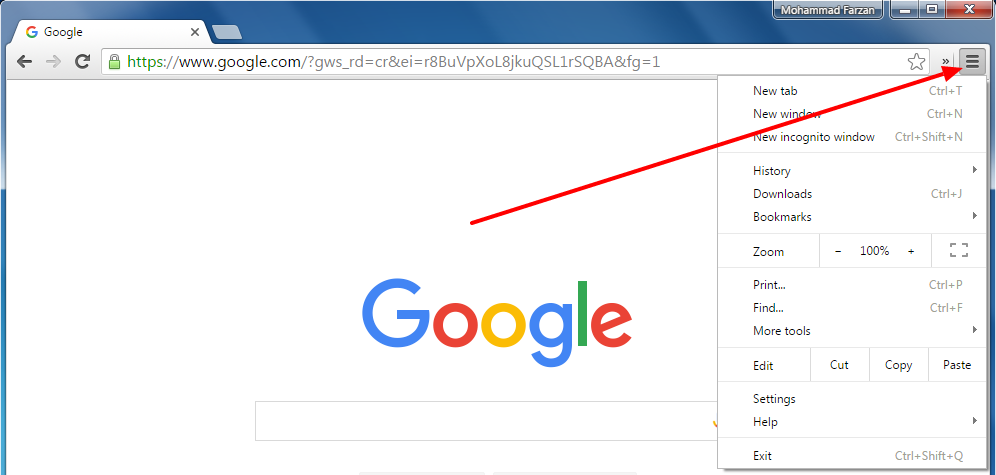
Chrome moves settings around every so often, but this menu is still the starting point.
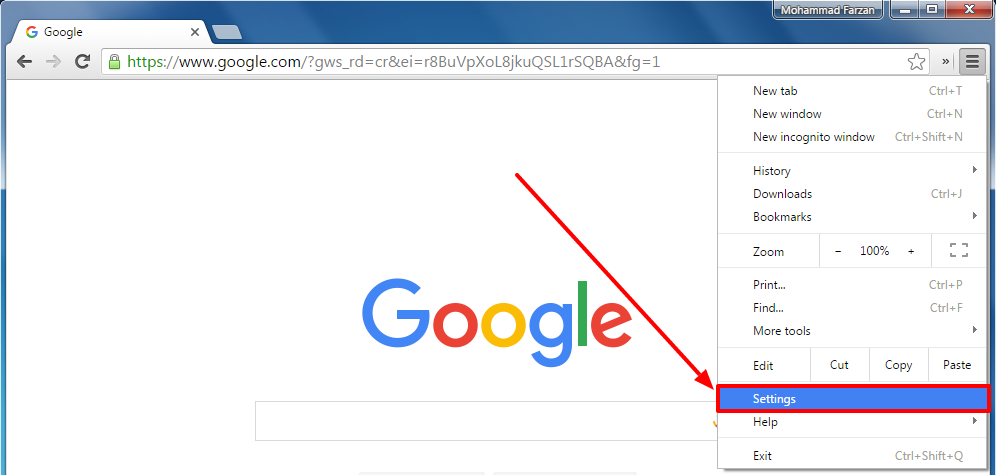
If you can’t find it quickly, use the settings search bar instead of wandering around.
Older articles called this prefetching or prerendering. Same broad idea. If Chrome feels snappier when opening likely next pages, that’s this setting doing its job quietly.
Tip #03, Remove Old Site Shortcuts and Unused Installed Experiences
The original article talked about Chrome Web Apps. That’s old news now. Chrome Apps are basically gone for normal users. But the modern version of the problem still exists. You install site apps, PWAs, shopping helpers, meeting launchers, random tools from the address bar, then forget about them for two years.
These won’t always be the main reason Chrome is slow. Still, if your browser has collected years of leftovers, clean them out. It helps more than people think.
- Open Chrome.
- Check your installed site apps and app-like shortcuts.
- Review anything you installed from the address bar or Chrome menu.
- Remove what you don’t use.
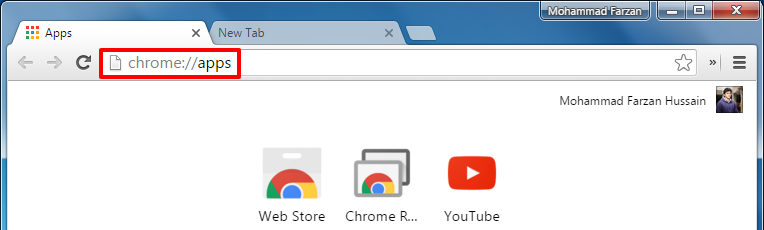
This screen is a relic now, useful only as a reminder that old Chrome advice ages badly.
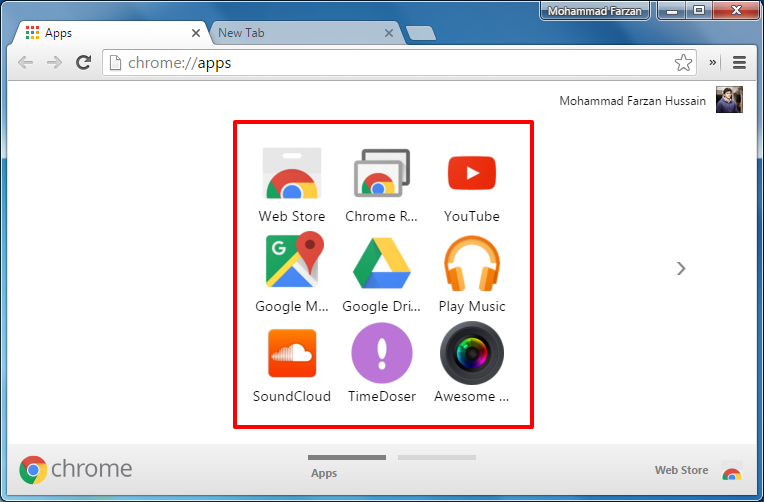
Good memory from 2016. Not where I’d send anyone trying to fix Chrome today.
Honestly, this isn’t my first move. Extensions matter more. But if your browser feels like an old storage room, cleaning out unused site installs is worth ten minutes.
Tip #04, Skip Obsolete Plugin Tweaks, Use Site Permissions Instead
This is one of the biggest places where old Chrome advice falls apart. The old chrome://plugins page is gone. NPAPI plugins are gone. Flash is gone. That whole layer of browser fiddling is dead.
What matters now is site permissions. A noisy site with autoplay video, push notifications, pop-ups, camera prompts, and background sync can absolutely make Chrome feel heavier than it should.
- Open Chrome settings.
- Go to Privacy and security.
- Open Site settings.
- Review notifications, pop-ups, sound, camera, mic, location, and background activity.
- Block or limit anything you don’t need.

This page doesn’t reflect how Chrome works anymore, so don’t waste time hunting for it.
What changed: plugin tweaking used to matter. Now it’s mostly about stopping websites from being loud, intrusive, or resource-hungry.
If one news site opens and your laptop suddenly sounds like it’s mining crypto, check permissions before you blame the whole browser.
Tip #05, Deactivate or Remove Unnecessary Extensions
If you only try one fix from this whole article, make it this one. Extensions are still the biggest Chrome slowdown culprit for normal people.
I used to install every little helper I found. Screenshot tool. Grammar tool. Dark mode tool. Coupon thing. AI sidebar. Another AI sidebar, because apparently one nonsense panel wasn’t enough. Then I opened Chrome Task Manager one humid evening and realized the browser was basically hosting freeloaders.
Go through your extensions properly:
- Open Chrome.
- Go to chrome://extensions.
- Disable anything you don’t use weekly.
- Remove anything old, suspicious, duplicated, or abandoned.
- Restart Chrome and test it again.
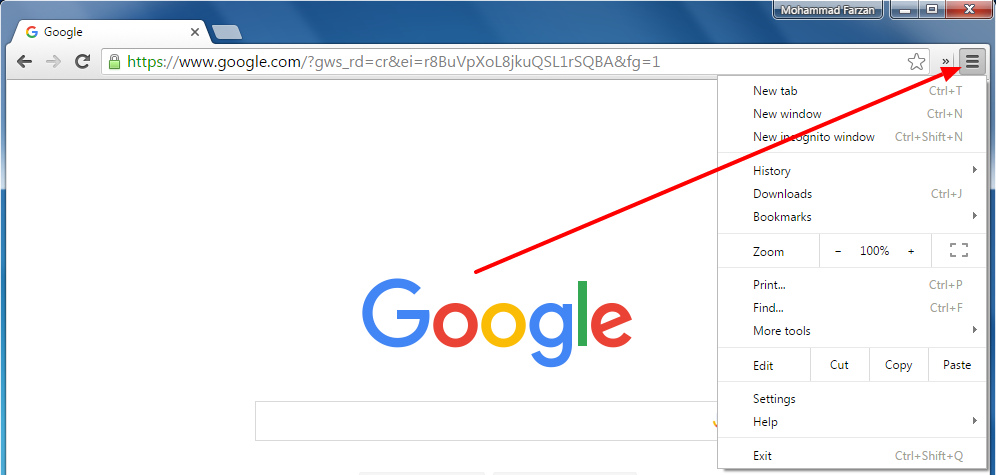
The menu path has shifted over the years, but your goal is the same: get to the extensions page fast.
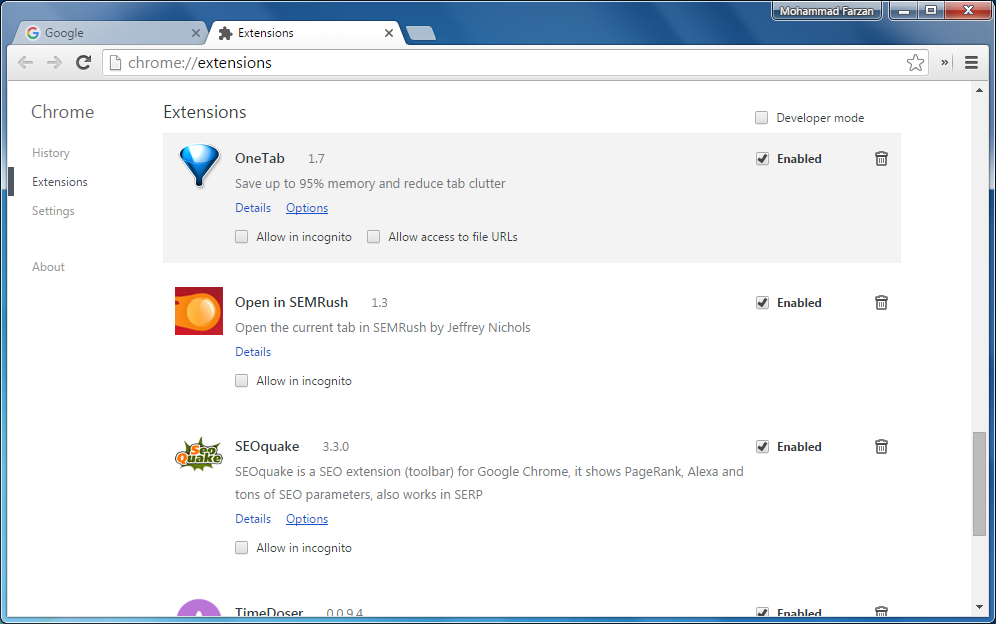
This page fixes more Chrome problems than most people expect.
| What to look for | Why it matters | What I’d do |
|---|---|---|
| Unused extension | It can still run in the background and waste memory | Disable it for a week, then delete it |
| Outdated extension | Old code causes bugs, crashes, and lag | Remove it unless it’s clearly maintained |
| Sketchy extension | It may inject ads or track browsing | Remove it immediately |
| Two tools doing one job | Duplicate features add overhead for no good reason | Keep one, remove the rest |
Best for: anyone with more than five or six extensions installed.
Skip if: your Chrome setup is already very lean and every extension is essential.
Tip #06, Disable Hardware Acceleration If Chrome Feels Glitchy
This tip still works, but it isn’t universal. On some machines, hardware acceleration helps a lot. On others, especially with dodgy GPU drivers, it makes Chrome feel broken. I’ve seen black flashes, stuttering video, weird scrolling, and freezing tabs disappear after switching it off.
If Chrome is slow and visually glitchy, test this. Test, not assume.
- Open Chrome settings.
- Search for hardware acceleration.
- Turn off Use graphics acceleration when available.
- Relaunch Chrome.
- Use it for a day and compare.
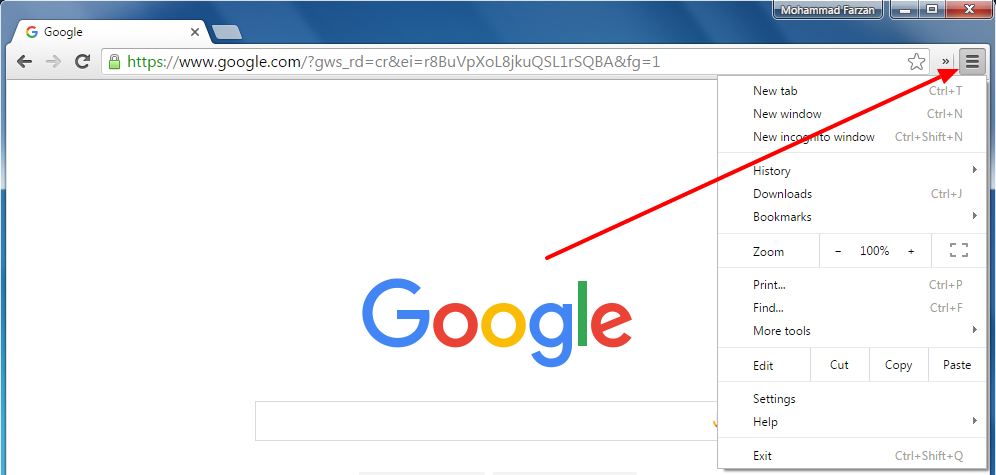
You still start from the menu, then head into settings and system-related options.
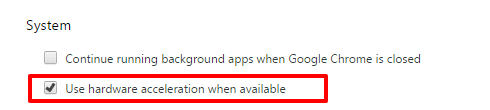
This tiny toggle has rescued more than one tired Windows laptop for me.
If Chrome gets worse after turning it off, just switch it back on. No drama.
Tip #07, Use Chrome Task Manager
This is probably the most underused tool in Chrome. And honestly, it feels great when you finally stop guessing and catch the actual tab or extension causing the mess.
Chrome Task Manager shows which tab, extension, or process is eating memory, CPU, network, or GPU resources. If one tab is acting possessed, you’ll usually spot it here in seconds.
- Open Chrome.
- Press Shift + Esc to open Chrome Task Manager.
- Sort by Memory footprint or CPU.
- Look for anything way above the rest.
- Select it and click End process.
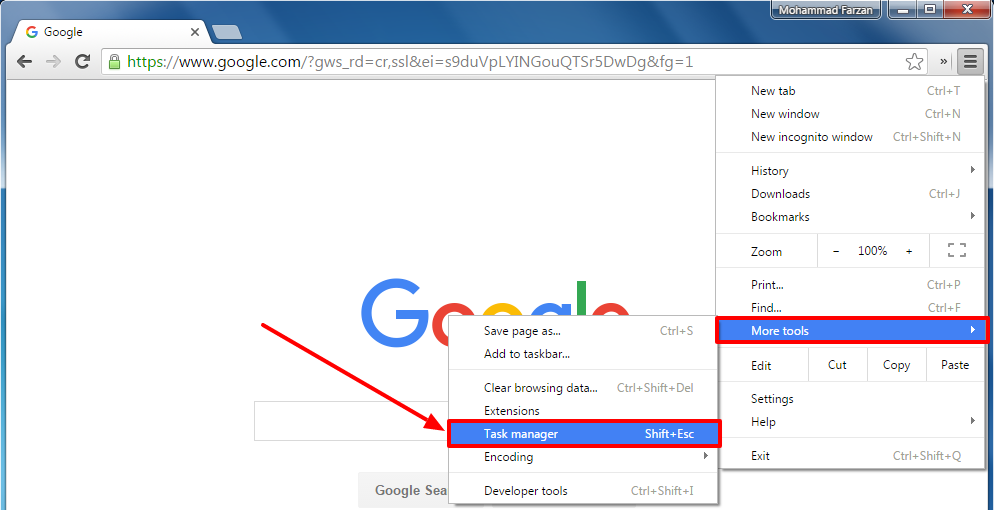
You can open it from the menu, but the shortcut is faster and worth remembering.
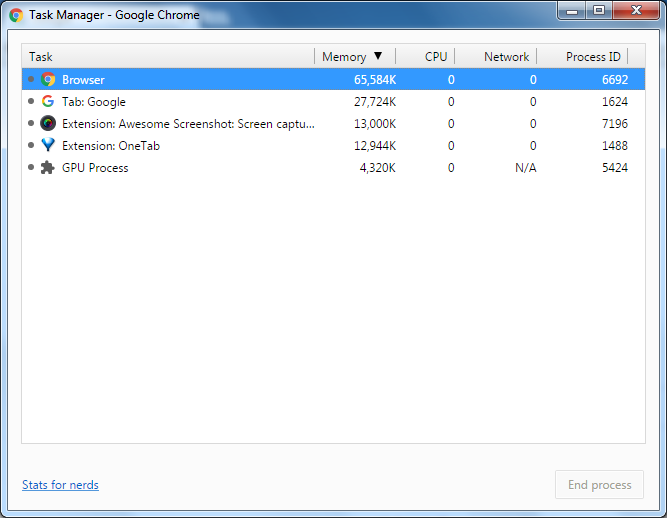
If one tab is eating half your RAM, it’ll usually show up here with zero shame.
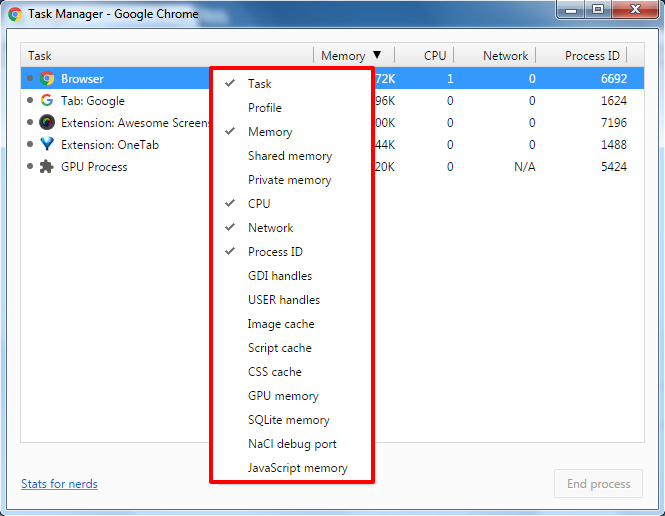
Extra columns help if you want to dig deeper and catch GPU-heavy or network-heavy processes.
I once had Gmail open, Slack open, Docs open, all normal. The real problem was one random coupon extension quietly roasting the browser in the background. Task Manager made that obvious in under ten seconds.
Tip #08, Be Careful With Chrome Flags
I need to be blunt here. Old blog posts love recommending mystery flag lists to “boost Chrome speed.” Most of that advice aged terribly. Some flags are gone. Some were renamed. Some were folded into Chrome already. Some just make your browser unstable.
Chrome flags are for testing, not routine maintenance.
Yes, chrome://flags still exists. No, I would not tell a normal person to go in there and start flipping switches because an article from years ago said so.

The page still exists, but the old confidence around random flag tweaking really shouldn’t.
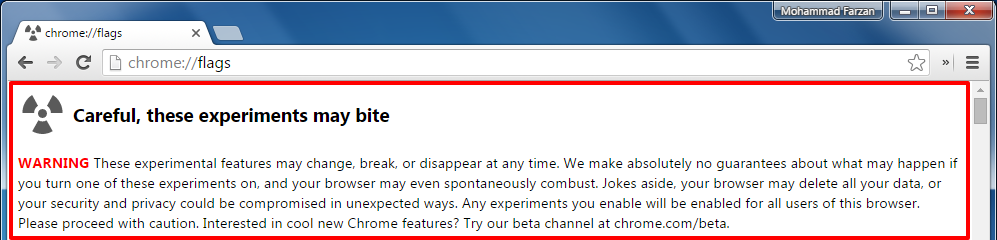
Google literally warns you here. That’s not subtle.
If you want my honest take, leave flags alone unless:
- You know exactly what the flag does
- You confirmed it still exists in your Chrome version
- You’re fine resetting it if things go sideways
I used to recommend more flag tweaking. I don’t anymore. These days, the biggest wins come from cleaning up extensions, updating Chrome, and killing bad tabs. Not from secret toggles hidden in a lab drawer.
If you’ve already changed a bunch of flags and Chrome feels unstable, go back to the flags page and hit Reset all.
Tip #09, Keep Your Browser Up To Date
This sounds boring, but it works. Chrome updates fix bugs, patch security problems, improve memory use, and clean up weird behavior that people often blame on “my laptop getting old.”
If you haven’t restarted Chrome in ages, do that first. Honestly, this alone fixes more nonsense than it should.
- Open Chrome.
- Click the three-dot menu.
- Go to Help > About Google Chrome.
- Let Chrome check for updates.
- Relaunch if prompted.
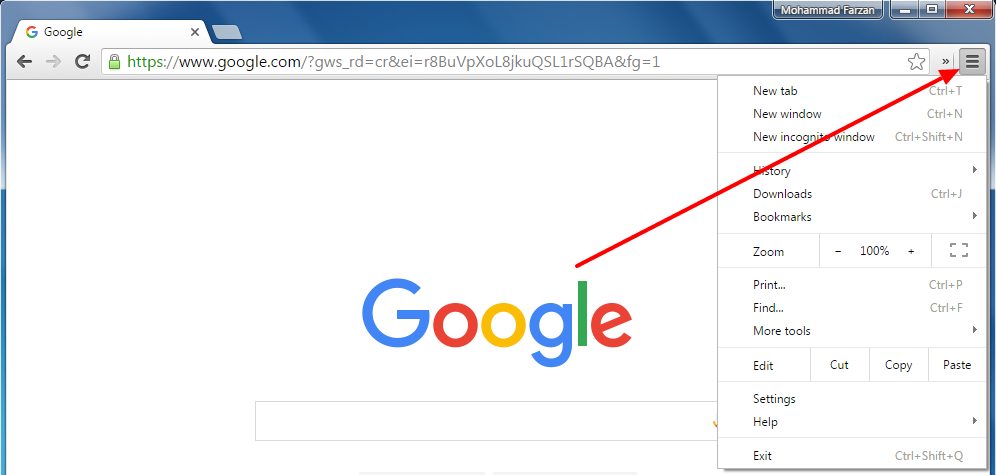
The route is still simple once you know where Google tucked it away.
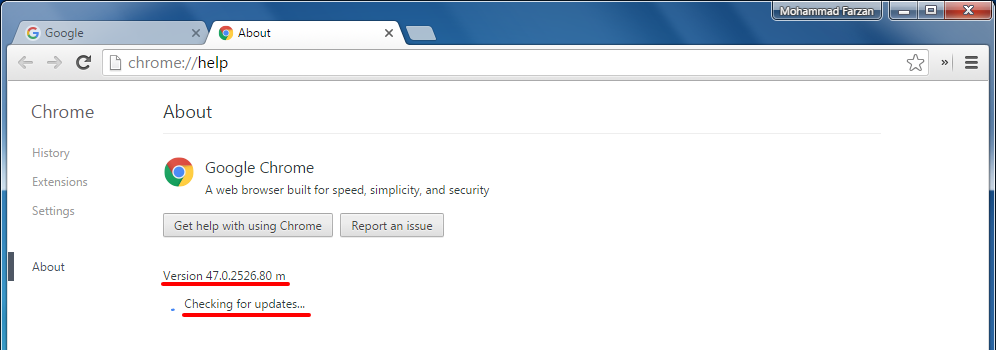
This page tells you quickly whether Chrome is current or waiting for a relaunch.
If you leave Chrome running for days, or let’s be honest, weeks, updates can sit there while performance slowly gets stranger.
Tip #10, Reset Chrome Settings and Run a Malware Check
The original article pointed people to the standalone Chrome Cleanup Tool. That’s gone. Google retired it years ago, so old guides that still push it are stale.
If Chrome still feels hijacked, slow, ad-ridden, or weird after everything else, do these two things:
- Reset Chrome settings
- Run a trusted malware scan on your computer
Here’s the Chrome part:
- Open Chrome settings.
- Search for Reset settings.
- Choose Restore settings to their original defaults.
- Confirm the reset.
This usually doesn’t delete bookmarks, history, or saved passwords. It resets startup pages, pinned tabs, search engine changes, disabled extensions, and other browser-level junk that may have piled up or been tampered with.
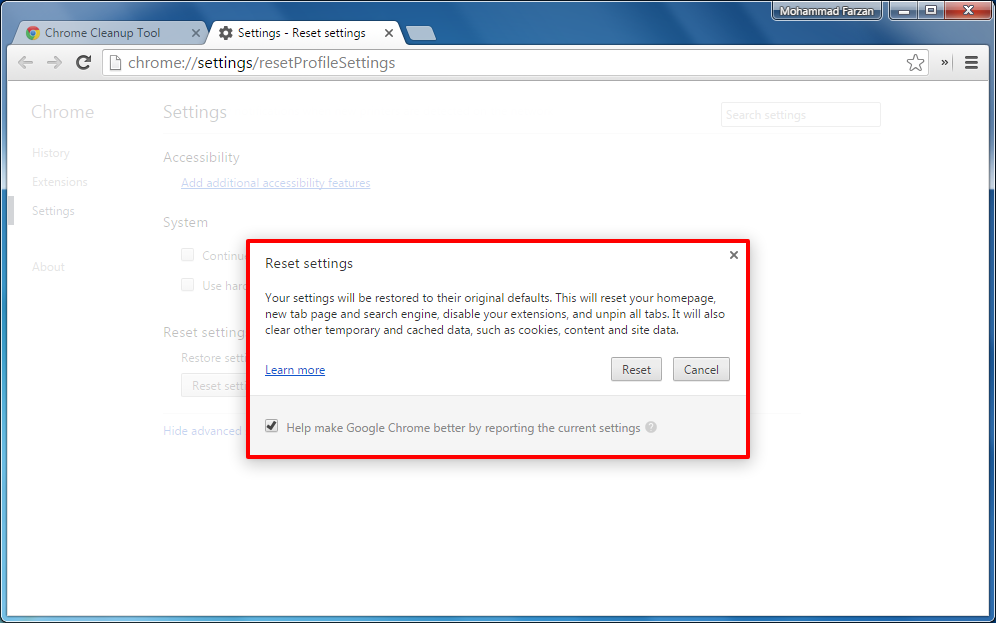
If Chrome feels tampered with, this is often the cleanest fix short of reinstalling it.
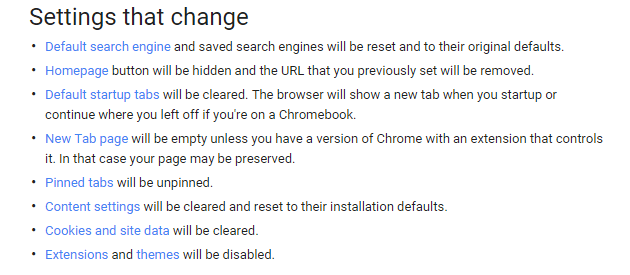
Read the details before clicking, but this reset is less destructive than most people expect.
Then run a malware scan with something you trust. Windows Security is decent for a lot of people. Malwarebytes is still a common second opinion. If some shady installer or extension messed with Chrome, a browser reset alone may not be enough.
What Still Matters, What Doesn’t
| Old advice | Status now | What to do instead |
|---|---|---|
| Clear cache and browsing data | Still useful | Do it selectively, not blindly |
| Enable prefetch or preload | Still useful | Turn on page preloading if your internet is stable |
| Remove Chrome Web Apps | Mostly outdated | Review installed site apps and browser leftovers |
| Disable plugins in chrome://plugins | Obsolete | Review site permissions instead |
| Remove extensions | Very important | Start here if Chrome feels slow |
| Disable hardware acceleration | Sometimes useful | Test it if you see lag, flicker, or display issues |
| Use Chrome Task Manager | Still excellent | Use it to catch bad tabs and extensions |
| Enable random Chrome flags | Risky and often outdated | Only change flags if you know what you’re doing |
| Use Chrome Cleanup Tool | Retired | Reset Chrome and run a malware scan |
Common Mistake Most People Make
The big mistake is changing ten things at once. Then Chrome improves a bit and you have no clue what actually fixed it.
Usually the problem is one of these:
- Too many extensions
- One broken tab
- Outdated Chrome waiting for a relaunch
- Corrupt site data
- Hardware acceleration behaving badly
- Malware or adware messing with settings
Do one thing. Test it. Then move to the next. Boring method, but it works.
What I’d Actually Do If It Were My Browser
If Chrome felt slow on my own machine today, I’d remove useless extensions first, then open Chrome Task Manager and look for the obvious troublemaker. After that I’d update Chrome, clear cached files, and test hardware acceleration on and off. If it still felt off, I’d reset Chrome settings and run a malware scan. I would not waste an hour digging through random old flag guides from the Windows 7 days.
Final Recommendation
If you want the short answer, start with extensions and Chrome Task Manager. That’s where the real wins usually are.
If I had to pick just two fixes for most people, I’d pick these:
- Remove or disable unnecessary extensions
- Use Chrome Task Manager to spot heavy tabs and background processes
That combo solves a surprising amount of nonsense.
If it were my money, time, and patience, I wouldn’t overthink this. I’d clean out extensions, find the offender in Task Manager, and only then touch the deeper settings. If Chrome still feels sluggish after that, reset it and move on with your life. No need to suffer out of loyalty to a browser, yaar.